These tabs are used to divide the menu into different sections.
With a simple click, you can go to the food, the drinks or the wine list.
As you scroll through the menu, these tabs stay fixed at the top, which makes browsing the menu easier.
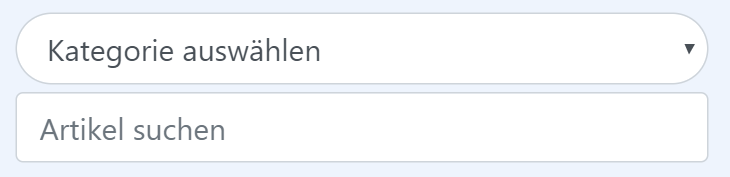
"Select category". Click on it to see the different main categories of the menu and go straight to the category you want, for example starters, main courses, ...
"Search items". Enter a search term and only dishes containing the term you entered will be shown.
With this heart you can add the item to your wish list and so have a direct overview for your order.
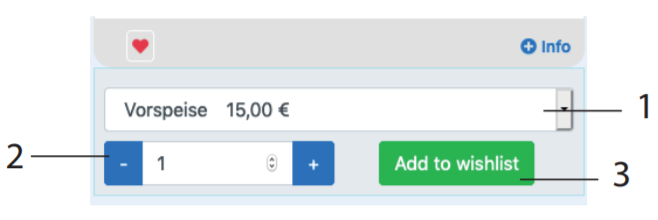
1. If your item has several prices, for example "starter" or "main course", or "large", "small", you can choose which item you would like to add to your wish list.
2. Here you can add the quantity of the selected item. For example, you can put the items for everyone present on the wish list, which makes it much easier to order from the staff afterwards.
3. To add the item you want to the wish list, just click quickly on "Add to Wishlist".
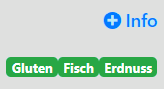
Below some items there is an "Info" button. If you click on it, you will see the allergens.

Fixed at the bottom of your smartphone screen, you will see the buttons "Language" and "Wish list". If the restaurant has created the menu in several languages, you can choose between the different languages by clicking on the "flag".
Next to it you will find the wish list. If you add an item to the wish list as described above, the price and the items that are on the wish list are already displayed down here. If you click on it, you will go to the wish list.
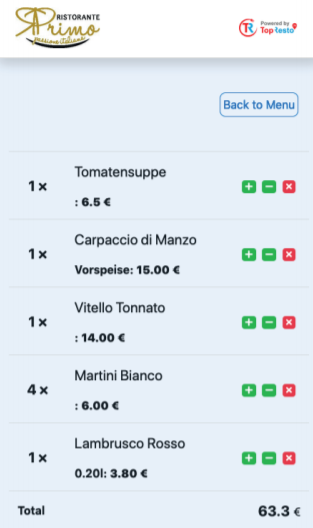
Here you now see all the items you have added to your wish list, including the total price. At the top you can go back with "Back to Menu" to add more items.
You can now conveniently show or read out the wish list to the staff.